Line Up
- What Is Xiaomi Mi PC Suite
- Highlights
- System Requirments,Downloads & Installation
- Brief Guide
What Is Xiaomi Mi PC Suite
Xiaomi Mi PC Suite is the one and only Pc suite for Xiaomi android devices. Xiaomi company created this tool for their users to get avoid the issues which occurred when Xiaomi devices are connected to personal computers. This tool has especially been designed for Xiaomi smartphones. It is only compatible Windows platform and if you are a Mac user you have to use Syncmate to utilize the data management facility. This file manager app offers you much more than managing data since it provides some advanced features such as upgrading Xiaomi firmware. Actually, this is an all in one solution. Xiaomi Mi Pc Suite latest update is 3.2.1.3111.
Highlights
- Super backup and fast restore in simple steps which supports all kind of data
- Restores soft-bricked Xiaomi smartphones
- Flashing, Upgrading and Downgrading Xiaomi smartphones
- superfast file transferring
- Screencast feature
- Files explorer feature easy file management
- Easy apps installation and Uninstallation
System Requirments
Windows XP, Windows 7, Windows 8/8.1 or Windows 10 computer
Supported Devices
- Xiaomi 1/1S/2/2S/2A/3/4/4i/Note/Pad
- Redmi 1/1S/Note/2/2A/2 Prime/Y1/Y1 Lite/Y2/Pad 2/3/3/3S Prime/4/4A/4X/5/5 Plus/5A/6
- Xiaomi Mi 3/4/4i/5/5c/Max/ Max 2
- Mi 6/6 Plus/6x/ 8/ Mi 8 SE/Note 2/3
- Redmi Note 2/3/4
- Redmi Note 5/Pro
Downloads
Installation
- Download and install Mi PC Suite on the Windows computer
- Connect the device using the USB cable. Since PC suite installs required drivers automatically connection will be established automatically
- Launch the application click on the desired option to proceed
Brief Guide on Using Xiaomi MI PC Suite
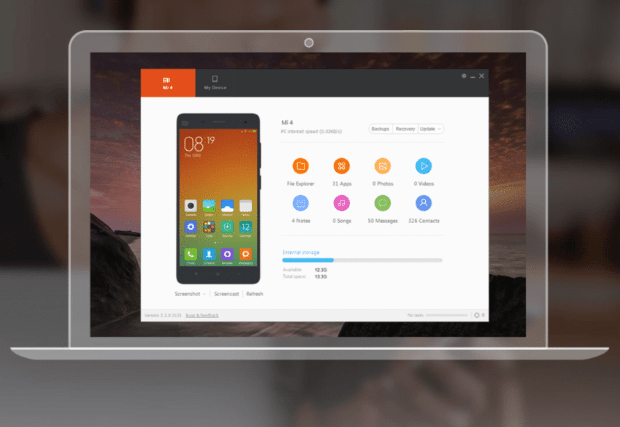
- After launching Mi PC Suite you get the main interface of the tool
On the main interface, you can manage all the data and do backups, restore, system upgrade and ROM flashing - When the device is connected it automatically switches to use the PC’s internet connection. Either you can keep it enabled or disable it.
- On the interface there a line of triple buttons on the left corner which is used to backup, restore and update
- In the centre, there are various functions such as apps, photos, videos, notes, music, messages, contacts which can be used to manage various data types
Note: Currently Screencast feature is only working on Mi3 and Mi4

 Mi PC Suite